> ## Documentation Index
> Fetch the complete documentation index at: https://www.tella.com/docs/llms.txt
> Use this file to discover all available pages before exploring further.
# Zoom in on screen recordings
> How to add and adjust zooms on a screen recording in the Tella editor, to draw attention to what matters.
Zooms draw attention to a detail in a screen recording or uploaded video. They are not available on camera-only clips.
## Open the Zoom tool
1. Open your video in the Tella editor.
2. Click **Zoom** in the sidebar.
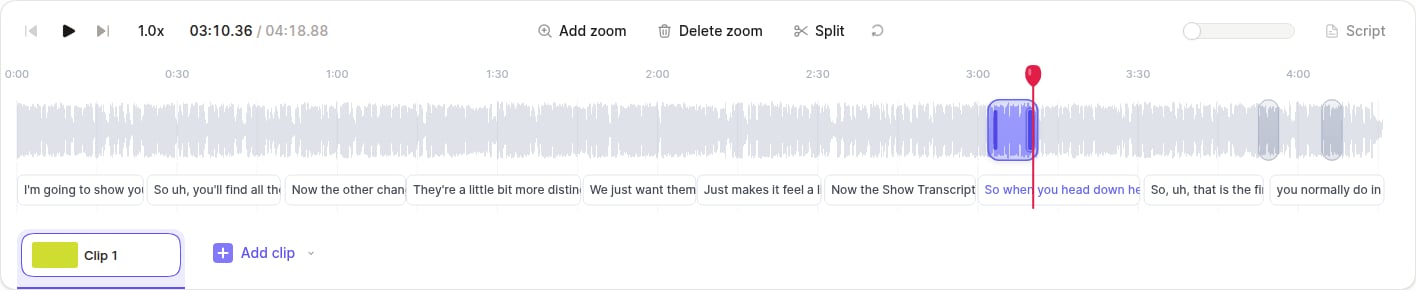
The Zoom timeline shows zoom cards over the clip's waveform, with transcript words underneath.
 ## Generate zooms automatically
Auto Zoom can generate zooms from cursor movement recorded by the Tella Mac and Windows apps.
1. Open **Zoom** on an eligible screen recording with no existing zooms.
2. Under **Auto Zoom**, choose a **Style**:
* **Subtle** — fewer, shallower zooms with longer durations.
* **Moderate** — a balance between Subtle and Intense.
* **Intense** — more frequent, deeper zooms with shorter durations.
3. Click **Generate zooms**.
Tella remembers the last style you chose. You can move, resize, retarget, split, or delete generated zooms just like manual zooms.
## Add a zoom to a selected range
1. Drag across the time you want to zoom. You can also click or drag across words in the transcript row.
2. Click **Add zoom**, press `Z`, or right-click the range and choose **Create zoom**.
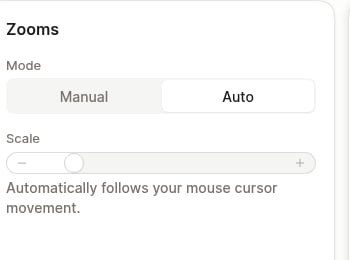
3. Select the new zoom card. Under **Mode**, choose:
* **Manual** — use **Target** to choose a fixed focus point, then set **Scale**.
* **Auto** — follow the recorded cursor movement throughout the zoom.
## Generate zooms automatically
Auto Zoom can generate zooms from cursor movement recorded by the Tella Mac and Windows apps.
1. Open **Zoom** on an eligible screen recording with no existing zooms.
2. Under **Auto Zoom**, choose a **Style**:
* **Subtle** — fewer, shallower zooms with longer durations.
* **Moderate** — a balance between Subtle and Intense.
* **Intense** — more frequent, deeper zooms with shorter durations.
3. Click **Generate zooms**.
Tella remembers the last style you chose. You can move, resize, retarget, split, or delete generated zooms just like manual zooms.
## Add a zoom to a selected range
1. Drag across the time you want to zoom. You can also click or drag across words in the transcript row.
2. Click **Add zoom**, press `Z`, or right-click the range and choose **Create zoom**.
3. Select the new zoom card. Under **Mode**, choose:
* **Manual** — use **Target** to choose a fixed focus point, then set **Scale**.
* **Auto** — follow the recorded cursor movement throughout the zoom.
 Each selected range must be at least one second long. If a new zoom overlaps an existing one, Tella trims, splits, or replaces the existing zoom so the cards do not overlap.
Hold **Shift** while dragging to select several ranges, then click **Add zoom** to create one zoom for every range at once.
## Add a zoom from the playhead
With no range selected, move the playhead and click **Add zoom**. Tella creates a zoom up to five seconds long, stopping sooner if it reaches another zoom or the end of the clip.
Hold **Cmd** on Mac or **Ctrl** on Windows while clicking to change the action to **Add until end**. The zoom fills the available gap.
## Work with the Zoom timeline
**Move and select zooms**
* Drag a zoom card to move it, or drag either edge to change its duration.
* Hold **Cmd** on Mac or **Ctrl** on Windows and click zoom cards to select several. You can change their scale, copy or cut them, or delete them together.
* Hold **Cmd/Ctrl** and drag across several cards to select them as a group.
* Press **Escape** to clear range and card selections.
**Navigate precisely**
* Scroll to pan. Hold **Cmd/Ctrl** and scroll to zoom around your pointer. **Shift + scroll** over the timeline zooms too.
* Zoom cards and selections snap to transcript word boundaries, other zoom edges, and the parked playhead. Hold **Option** on Mac or **Alt** on Windows while dragging to turn snapping off.
* Click a card edge or a seam, then press the left or right arrow key to move it by one pixel at the current timeline zoom. Hold **Shift** to move it by 10 pixels.
**Use connected zooms**
Place two zooms directly beside each other to pan between different targets without zooming out. Drag their shared seam to move the boundary while both cards stay connected. Hold **Option/Alt** while dragging the seam to pull them apart.
**Right-click for more**
* Right-click a zoom card to **Split at playhead**, switch between manual and auto zoom, or **Delete zoom**.
* Right-click an empty gap to **Add zoom here**.
* Right-click a selected range to **Create zoom**.
## Copy, cut, and paste zooms
1. Select one or more zoom cards.
2. Press **Cmd/Ctrl + C** to copy, or **Cmd/Ctrl + X** to cut.
3. Move the playhead and press **Cmd/Ctrl + V** to paste.
Tella preserves each zoom's mode, target, scale, duration, and spacing. You can paste into another video, and Tella fits the pasted zooms around existing zooms.
## Split, delete, or reset zooms
* **Split:** Select a zoom, move the playhead inside it, then click **Split** or press `X`. Both halves keep the original mode, target, and scale.
* **Delete:** Select one or more zooms, then click **Delete zoom** or press **Delete** or **Backspace**.
* **Reset:** Use the **Reset zooms** button to remove every zoom from the current clip.
## Combine zooms with layouts
Zooms and layouts can overlap. Use [Layouts](/docs/help/editing/use-layouts) to change how the camera and screen are arranged while a zoom focuses on the important part of the screen.
Higher scales can look soft if the original screen recording is low resolution. Use the lowest scale that makes the detail clear.
Each selected range must be at least one second long. If a new zoom overlaps an existing one, Tella trims, splits, or replaces the existing zoom so the cards do not overlap.
Hold **Shift** while dragging to select several ranges, then click **Add zoom** to create one zoom for every range at once.
## Add a zoom from the playhead
With no range selected, move the playhead and click **Add zoom**. Tella creates a zoom up to five seconds long, stopping sooner if it reaches another zoom or the end of the clip.
Hold **Cmd** on Mac or **Ctrl** on Windows while clicking to change the action to **Add until end**. The zoom fills the available gap.
## Work with the Zoom timeline
**Move and select zooms**
* Drag a zoom card to move it, or drag either edge to change its duration.
* Hold **Cmd** on Mac or **Ctrl** on Windows and click zoom cards to select several. You can change their scale, copy or cut them, or delete them together.
* Hold **Cmd/Ctrl** and drag across several cards to select them as a group.
* Press **Escape** to clear range and card selections.
**Navigate precisely**
* Scroll to pan. Hold **Cmd/Ctrl** and scroll to zoom around your pointer. **Shift + scroll** over the timeline zooms too.
* Zoom cards and selections snap to transcript word boundaries, other zoom edges, and the parked playhead. Hold **Option** on Mac or **Alt** on Windows while dragging to turn snapping off.
* Click a card edge or a seam, then press the left or right arrow key to move it by one pixel at the current timeline zoom. Hold **Shift** to move it by 10 pixels.
**Use connected zooms**
Place two zooms directly beside each other to pan between different targets without zooming out. Drag their shared seam to move the boundary while both cards stay connected. Hold **Option/Alt** while dragging the seam to pull them apart.
**Right-click for more**
* Right-click a zoom card to **Split at playhead**, switch between manual and auto zoom, or **Delete zoom**.
* Right-click an empty gap to **Add zoom here**.
* Right-click a selected range to **Create zoom**.
## Copy, cut, and paste zooms
1. Select one or more zoom cards.
2. Press **Cmd/Ctrl + C** to copy, or **Cmd/Ctrl + X** to cut.
3. Move the playhead and press **Cmd/Ctrl + V** to paste.
Tella preserves each zoom's mode, target, scale, duration, and spacing. You can paste into another video, and Tella fits the pasted zooms around existing zooms.
## Split, delete, or reset zooms
* **Split:** Select a zoom, move the playhead inside it, then click **Split** or press `X`. Both halves keep the original mode, target, and scale.
* **Delete:** Select one or more zooms, then click **Delete zoom** or press **Delete** or **Backspace**.
* **Reset:** Use the **Reset zooms** button to remove every zoom from the current clip.
## Combine zooms with layouts
Zooms and layouts can overlap. Use [Layouts](/docs/help/editing/use-layouts) to change how the camera and screen are arranged while a zoom focuses on the important part of the screen.
Higher scales can look soft if the original screen recording is low resolution. Use the lowest scale that makes the detail clear.