On a Mac, Apple’s Continuity Camera lets you pick your iPhone as the camera in Tella for a much sharper picture than most built-in webcams. It needs iOS 16+ and macOS Ventura or later.
On a Mac, Apple’s Continuity Camera lets you pick your iPhone as the camera in Tella’s camera menu, giving you a much sharper picture than most built-in webcams. It needs iOS 16 or later and macOS Ventura or later.
How does Continuity Camera compare to other webcams?
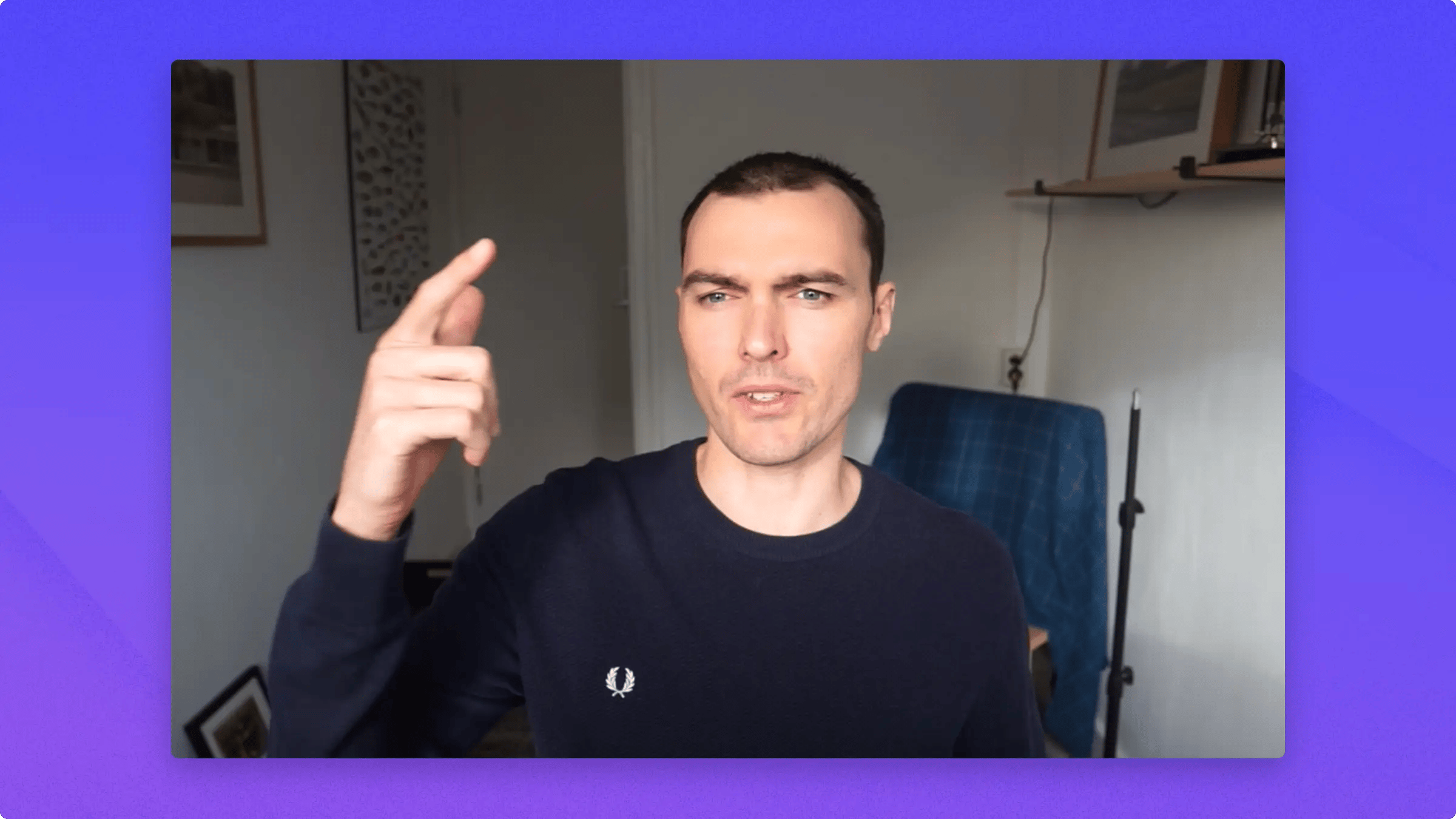
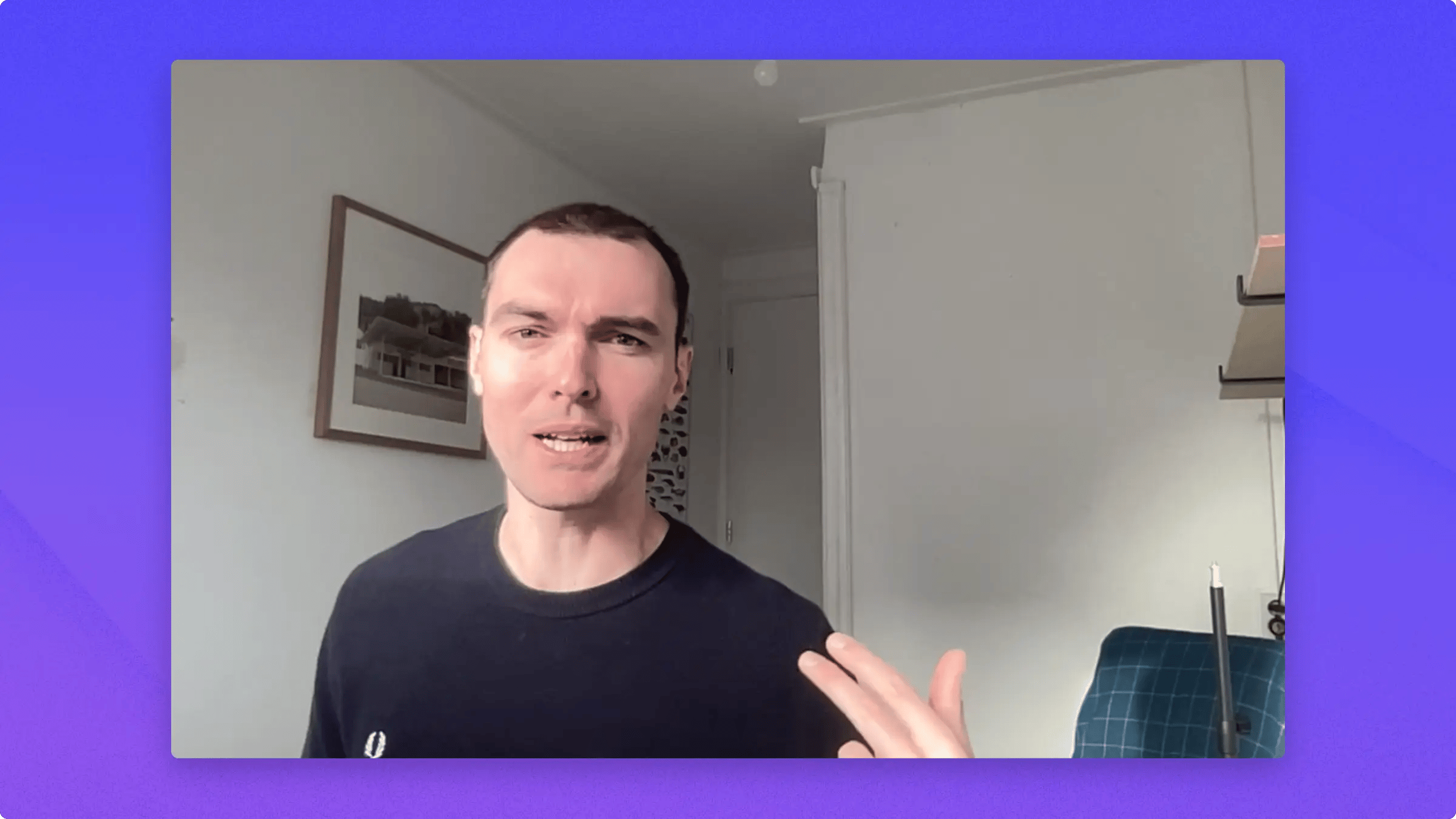
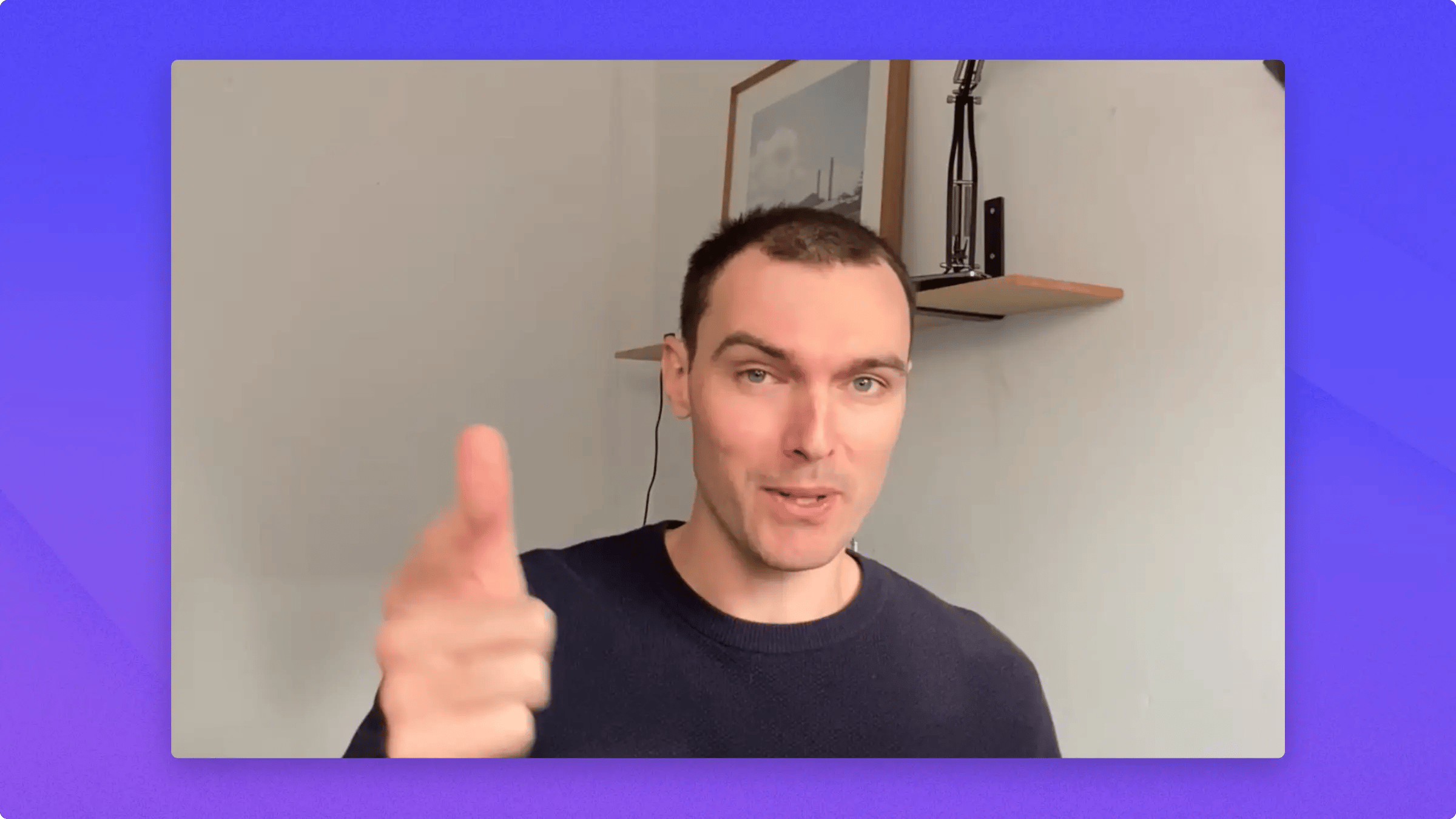
Here’s how Continuity Camera looks and works using an iPhone.So right now, I’m using my Sony Mirrorless Camera. It’s connected via CamLink, and it has this giant external lens on it.It’s a really great setup. I love it. But it costs bucks, and that’s not cheap.Next is the picture quality from my two-year-old all-in-one Mac.It’s not the worst in the world, but it’s really not great.And this is Continuity Camera using my iPhone on my desk, wirelessly connected to my computer.It has a bunch of neat little features which we are gonna tackle in a second. And most importantly, the quality is awesome.
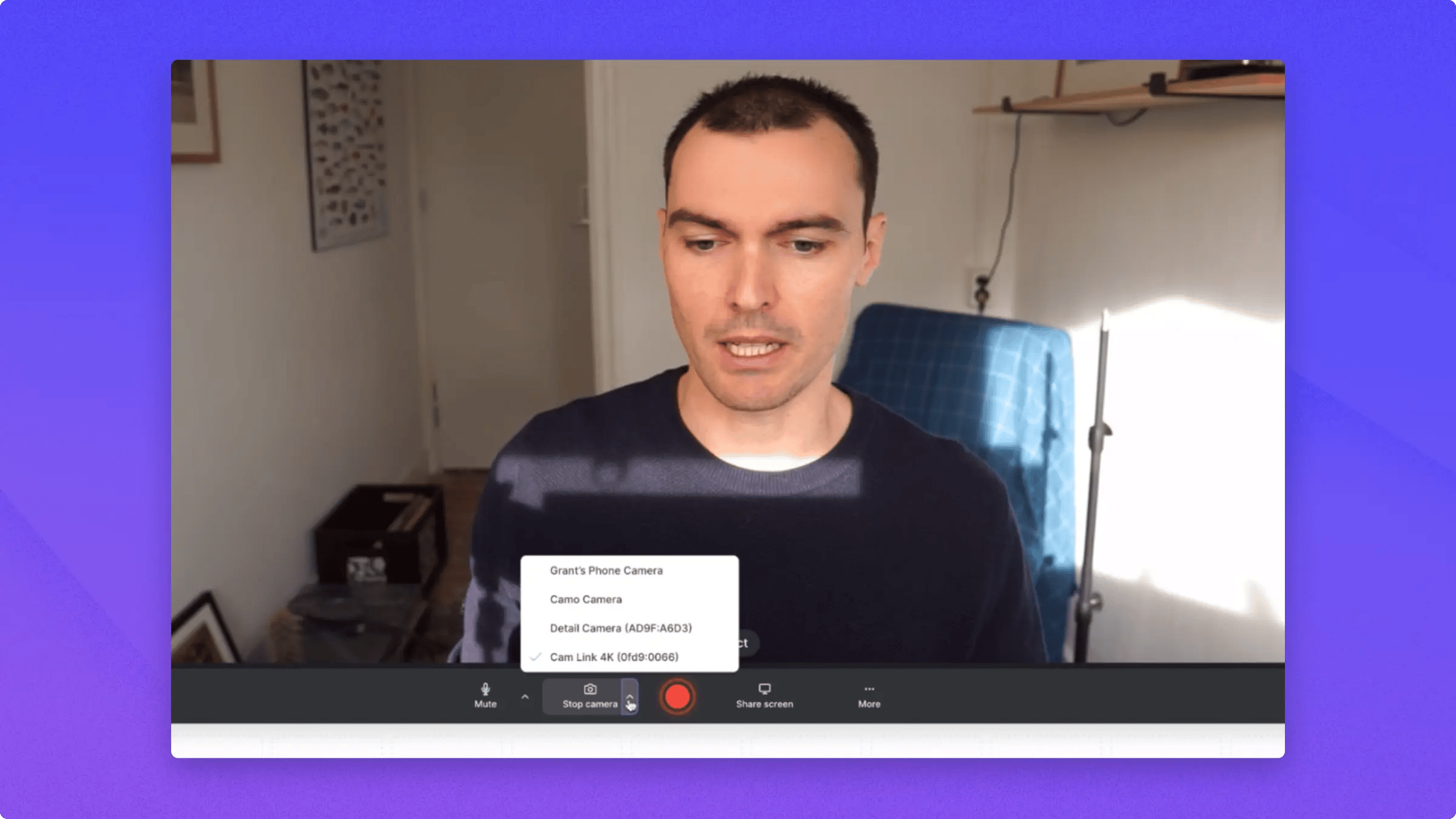
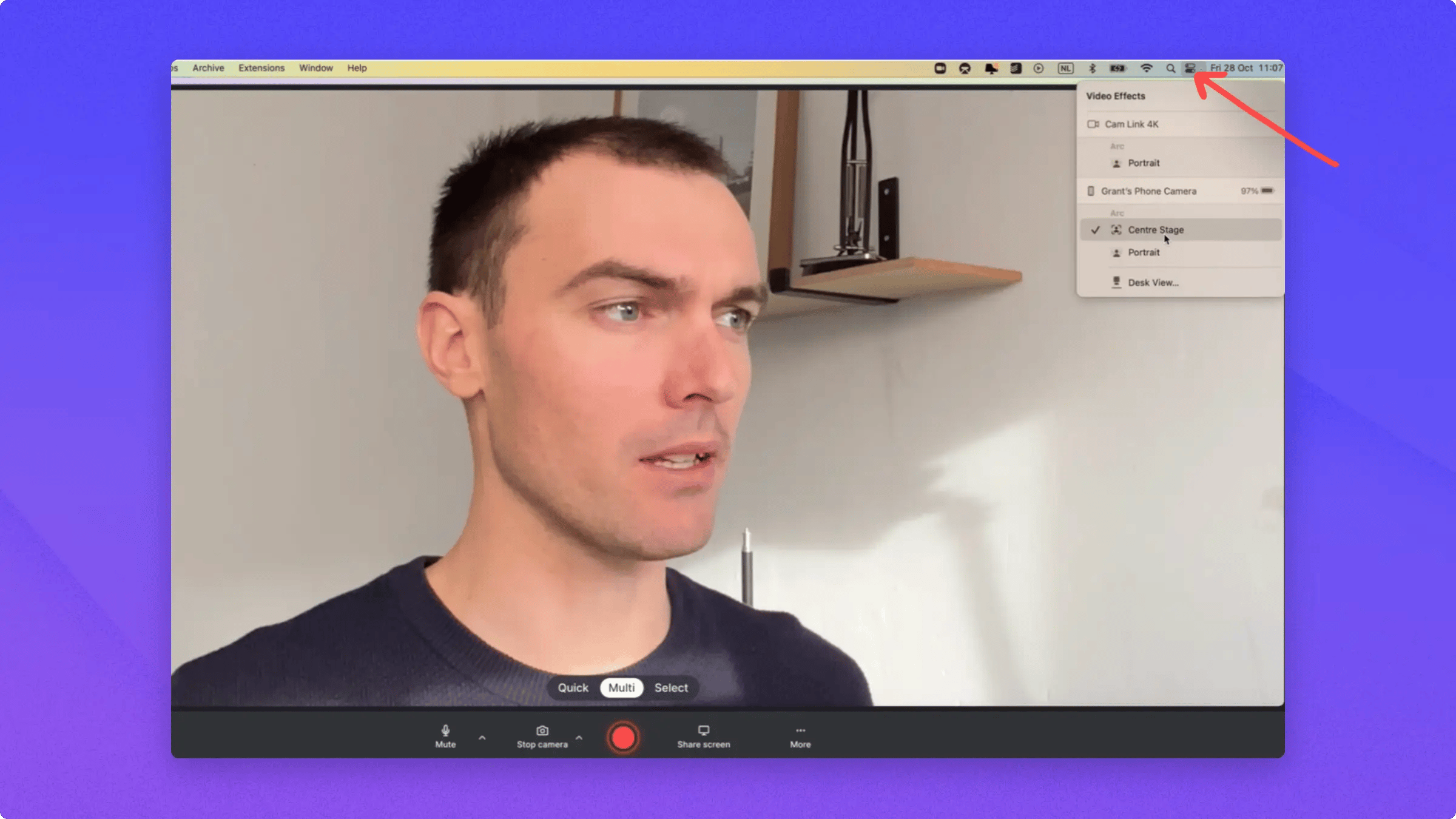
To set this up, open Tella or whatever video app you’re using, go down to your camera option, and then just head up and click the name of your phone.That will ring a little sound on your phone and then it will connect. Once you’re connected, you can go to this little icon up here.Then go to your Video Effects and you can turn on things like Center Stage, which follows you around and makes the shot bigger.Then you can also turn on Portrait Mode, which means that you can blur your background.Continuity Camera needs iOS 16 or later on your iPhone and macOS Ventura or later on your Mac.
If your camera keeps zooming or moving to follow you while you record, that’s Center Stage. It’s a macOS camera feature, not a Tella setting, and it’s turned on by default when you use your iPhone as a webcam.To turn it off:
Open the Tella recorder and select your camera so the preview is live.
Open Video Effects:
On macOS Ventura 13, click the Control Center icon in the menu bar, then click Video Effects.
On macOS Sonoma 14 or later, click the green camera icon in the menu bar, click your camera’s name if shown, then click Video Effects.
Click Center Stage to turn it off.
macOS remembers this setting per camera, so it stays off for your future recordings. The same menu also controls Portrait Mode and the other video effects.