Auto Layouts, in the editor’s Layout panel, analyzes a clip’s transcript and video and adds a sequence of layouts in your chosen style (Auto, Demo, Tutorial, Presentation, or Intro & Outro). Clips must be under 20 minutes.
Auto Layouts, in the editor’s Layout panel, analyzes a clip’s transcript and video and adds a sequence of layouts (camera bubbles, screen-only beats, camera cutaways, side-by-side splits, TV-presenter compositions, and optional image B-roll) in the editing style you choose. It works one clip at a time on clips under 20 minutes.
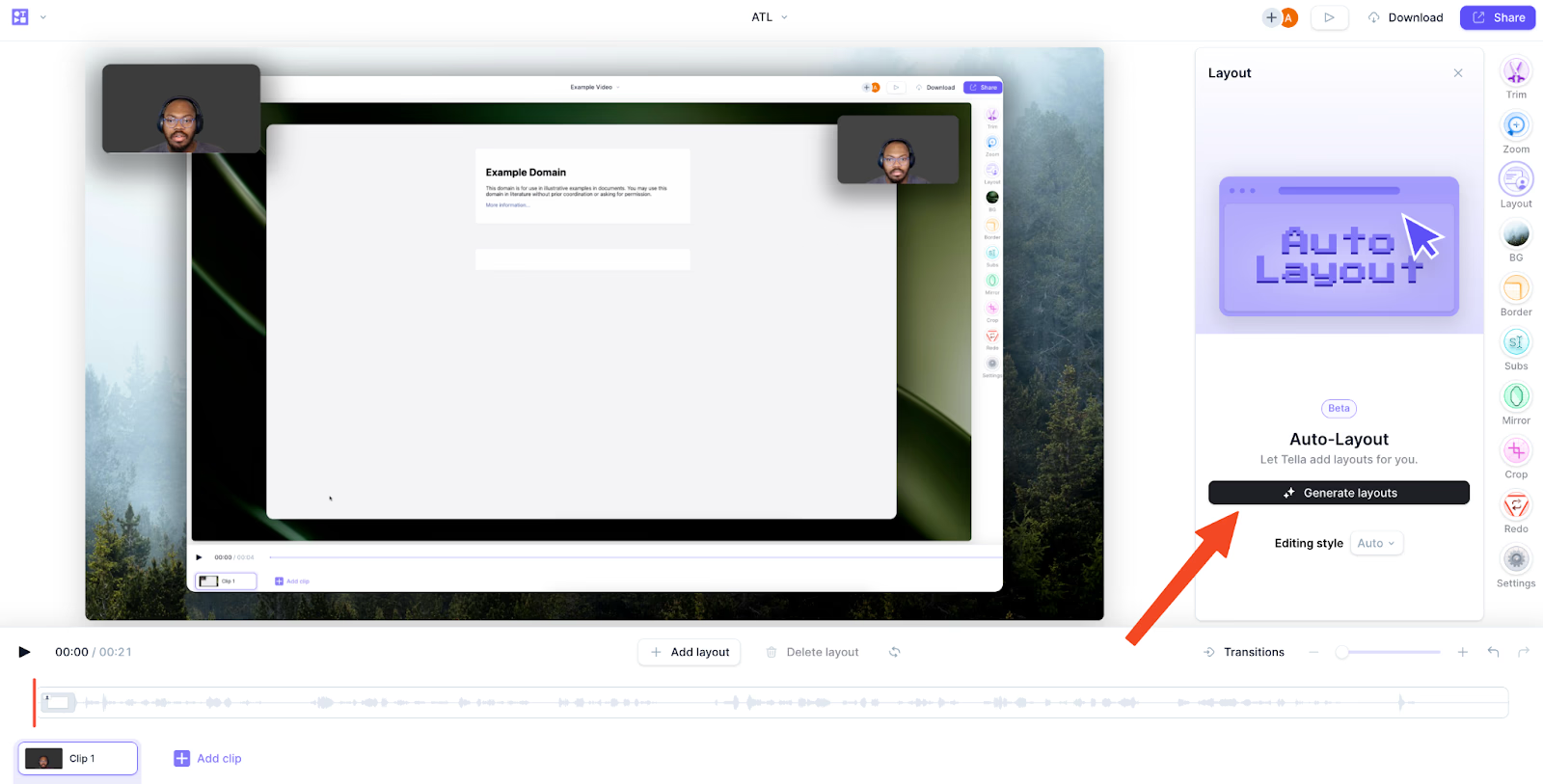
Open a clip in the editor and go to the Layout section.
On short browser windows, Tella keeps Auto Layouts and Generate visible but hides the optional preview and feedback controls to leave room for layout presets.
Choose your editing style from the Template dropdown beside Generate. Auto is selected by default and picks the right style based on the content of your clip. Select Browse all to see every style with a thumbnail.
Each style changes the pacing, composition, and edit vocabulary of your video
Hover over a style to see a description
Try Auto the first time you generate layouts
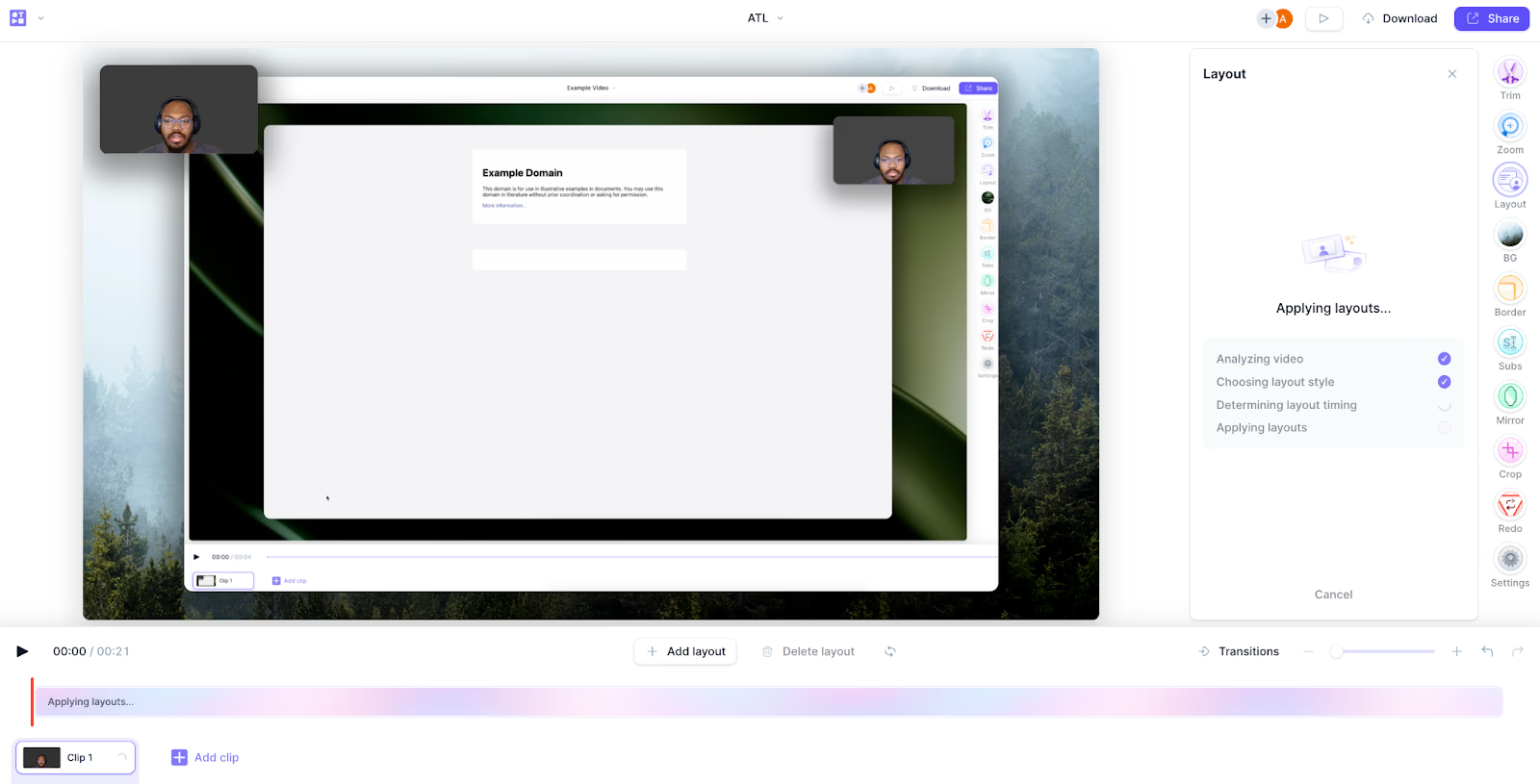
Click Generate.Layouts start streaming in and are applied to your clip as they generate.
Wait for the generation to complete.
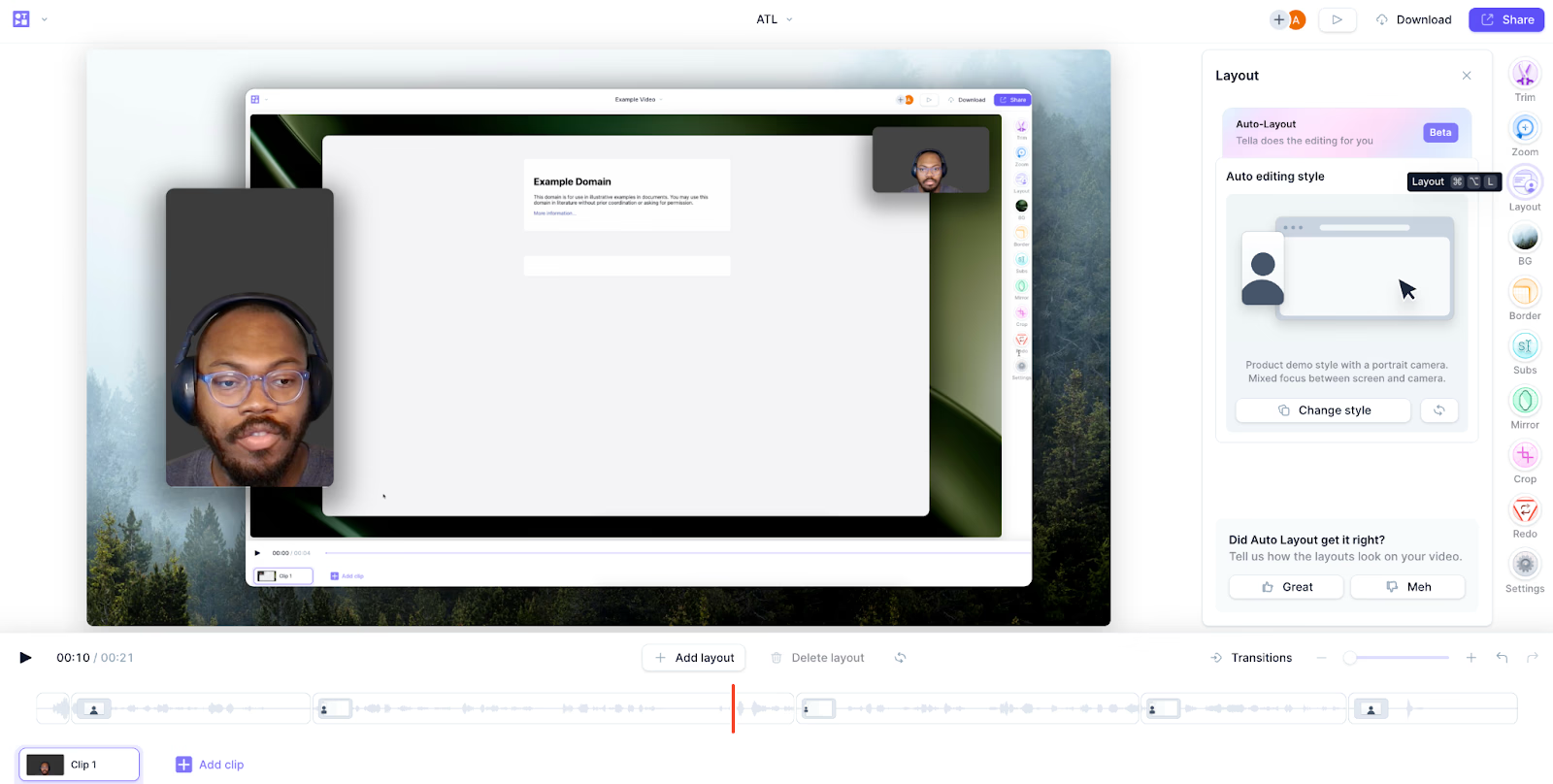
Review the result. Give a thumbs up or thumbs down to rate it. Your feedback helps tune the model.
Each style is tuned for a different kind of content and a different canvas. The styles available to auto layouts depend on your clip’s recording type and canvas size.
Auto: picks the most appropriate style based on what you say and show
Demo: high-energy proof + commentary; mixes screen reveals, camera cutaways, punch-ins, and B-roll for product walkthroughs, page critiques, and feature launches
Tutorial: procedural, step-by-step instruction where the viewer needs to follow exact clicks, typing, and configuration
Presentation: speaker-led talks, pitches, recaps, and lessons; includes a hosted TV show variant on landscape canvases that frames the speaker like a presenter
Intro & Outro: only bookends the clip with a camera-led intro and outro and leaves the middle untouched
For product demo and presentation styles, auto layouts can insert AI-generated still images as B-roll over abstract concepts, benefits, customer situations, examples, and metaphors: places where there’s nothing specific on screen to inspect.
B-roll appears as a generated still image (never video) sized to your canvas
Placeholders show the prompt while the image is generating
B-roll is skipped during clicks, typing, cursor work, code edits, and dense slide reading
The Intro & Outro style doesn’t add B-roll by default
Landscape (16:9): two-track (camera + screen), screen-only, and camera-only recordings
Portrait (9:16): two-track, screen-only, and camera-only recordings
Square (1:1) and round: two-track and camera-only recordings
The available editing styles and compositions adapt to the canvas, for example, portrait clips use a presenter-forward split, and landscape presentations can use the TV-presenter framing.
Variability: each generation can produce slightly different results; regenerate to find the version you like
Pacing: overrides are used as exceptions to the base layout, so most of the clip stays on the base composition with timed accents around important moments
Processing time: longer clips take longer to generate
Each person can start up to 10 auto layout generations per minute in each workspace. If you see Couldn’t load Auto Layouts after repeated attempts, wait a minute and try again
Make all crop changes before running auto layouts. Cropping afterwards affects every layout and can produce unexpected results
After cropping, you can’t update the generated layouts


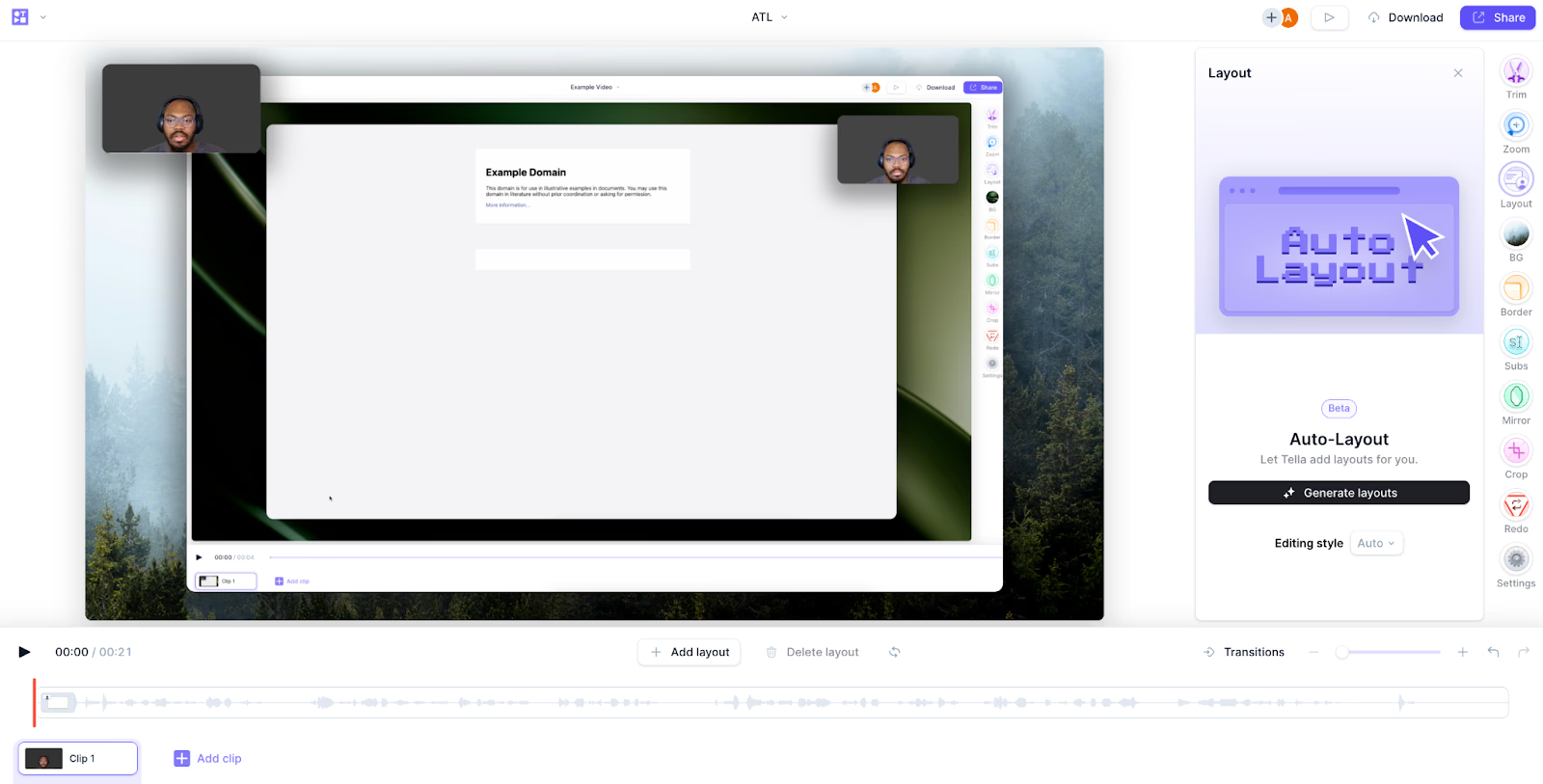 On short browser windows, Tella keeps Auto Layouts and Generate visible but hides the optional preview and feedback controls to leave room for layout presets.