

Record system audio in the Mac app
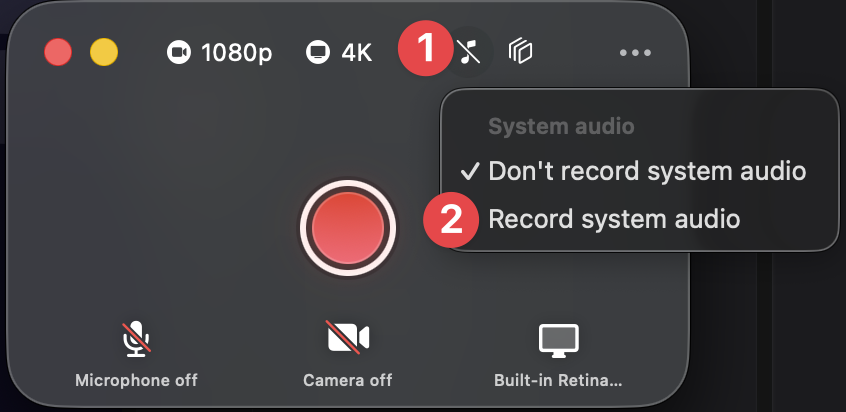
The Tella Mac app can capture system audio natively. Here’s how:- Open the Tella Mac app and turn the screen on. System audio is recorded as part of your screen capture, so a camera-only clip won’t include it.
- System audio is on by default. The music note icon in the settings bar at the top of the recorder window shows the current state (it has a slash through it when off). Click it and choose Record system audio or Don’t record system audio before you start recording. The same option is in … → Settings → Recording as Record computer audio.
Record system audio in the Windows app
The Tella Windows app also captures system audio natively, with no extra software required, but it is off by default:- Open the Windows app settings and turn on System audio. The toggle is in the settings, not in the control bar next to the display, camera, and microphone pickers.
- Turn the screen on. System audio is recorded together with your screen, so a camera-only recording won’t include desktop sound.
Tella captures the audio playing through your default Windows playback device, headphones included, so select the output device you want before you start.
Record tab audio in the web app
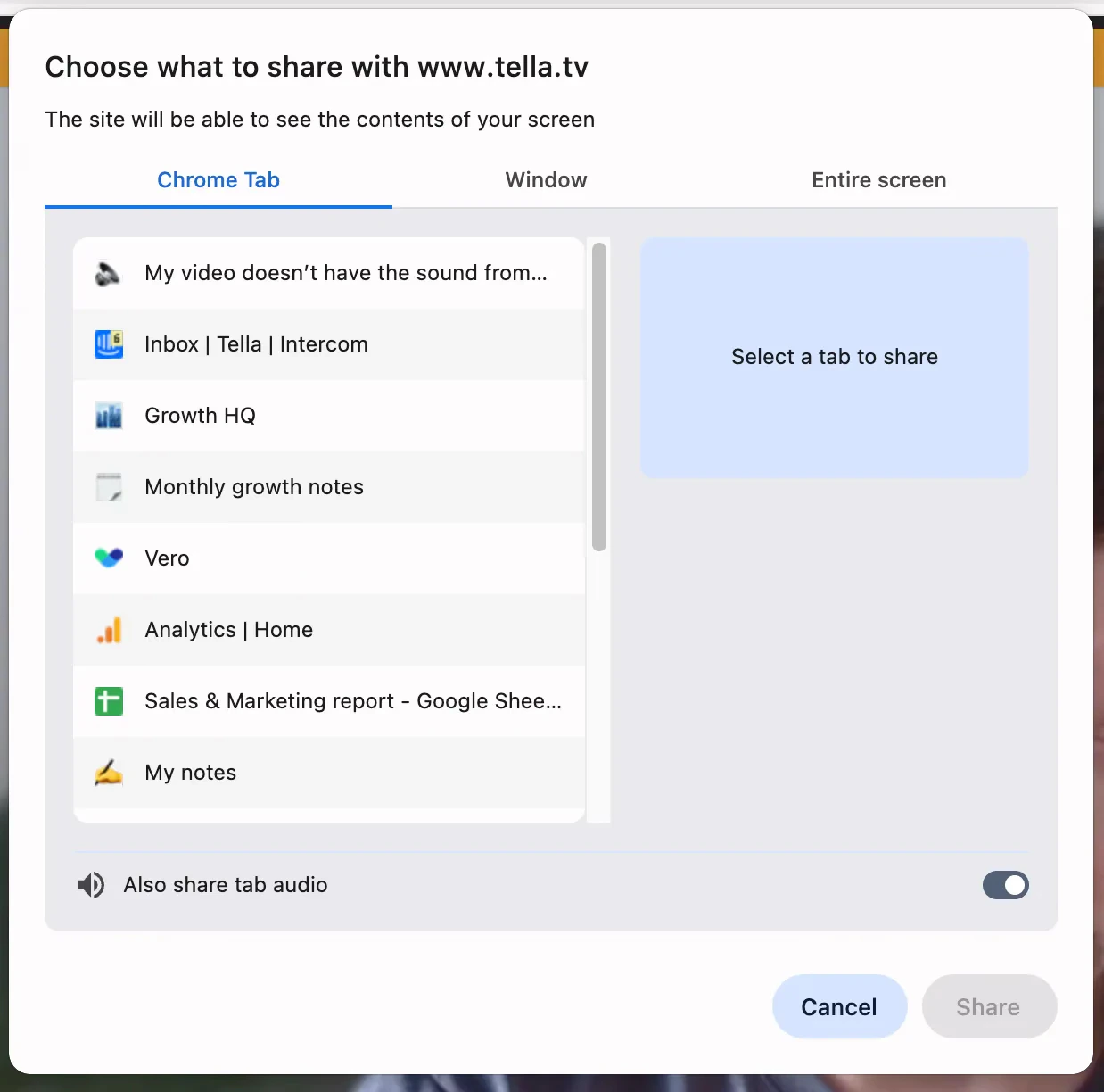
When recording with the Tella web app:- Click Share screen in the recorder
- In the screen share dialog, choose the Chrome Tab you want to record and look for the “Also share tab audio” toggle at the bottom
- Make sure this toggle is enabled before clicking Share
Record tab audio in the Chrome extension
The Chrome extension follows the same process as the web app:- Open the extension and click the screen button to choose what to share
- Pick a Chrome Tab and turn on “Also share tab audio” in the share dialog
- Click Share, then start recording
Why doesn’t my video have the sound from my computer?
If your recording has your voice but not the sound from your computer (a meeting, a YouTube video, app sounds), system audio wasn’t captured. Check the setting for the recorder you used:- Mac app: Make sure you recorded your screen (not camera only), that the music note icon was on (… → Settings → Recording → Record computer audio), and that Tella has permission under System Settings → Privacy & Security → Screen Recording
-
Web app or Chrome extension: Make sure you shared a Chrome Tab (not a window) and turned on “Also share tab audio” before clicking Share
- Windows app: Make sure you recorded your screen, that System audio was turned on in the app settings (it’s off by default), and that the sound was playing through your default playback device